Reticulum: Chapter 3 — Prep the Raspberry Pi 3

Where I’m starting from

My Pi 3 is sitting in front of me with a blank SD card — nothing on it yet. I’ll be accessing it headlessly over SSH from my main computer, so I need to get the OS imaged and SSH configured before the Pi even boots for the first time. This chapter is purely software and setup — no Heltec hardware involved yet.

Step 1: Flashing the OS with Raspberry Pi Imager

I downloaded Raspberry Pi Imager from raspberrypi.com/software onto my main computer. The process is straightforward but there are a couple of choices worth making deliberately rather than just accepting defaults.

Insert the SD card, open Imager, then:

  1. Choose Device → Raspberry Pi 3
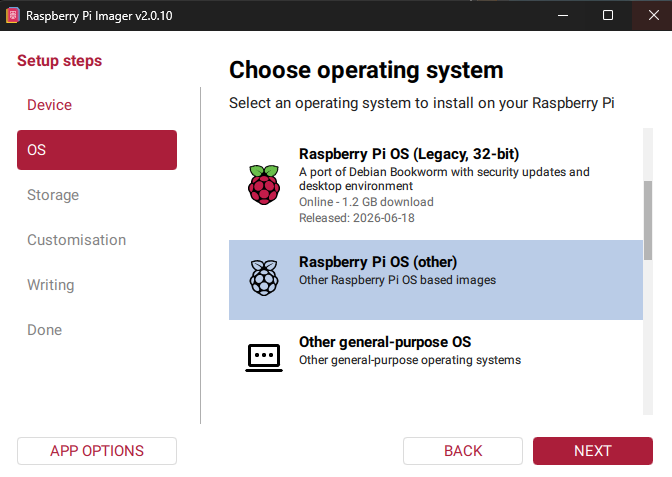
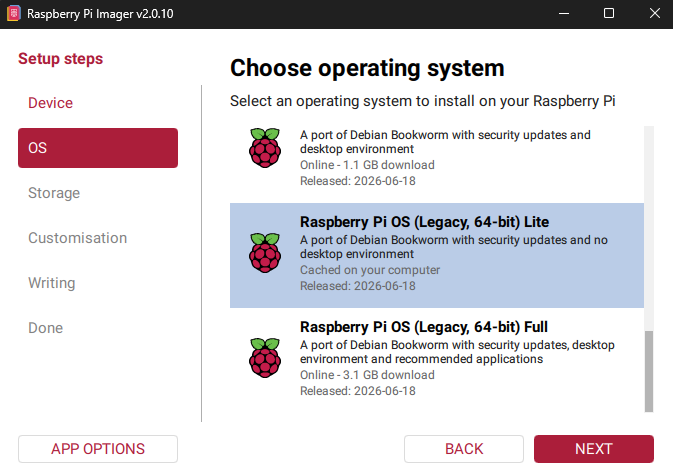
  2. Choose OS → Raspberry Pi OS (Other) → Raspberry Pi OS Lite (64-bit)

I’m going with Lite deliberately — I don’t need a desktop environment on a headless node, and keeping it lean means more CPU and RAM available for rnsd and mesh traffic later. Less cruft, more performance.

⚠️ NOTICE: as of late 2025, the newest Raspberry Pi OS images based on Debian Trixie have WiFi issues that can prevent headless setup from working on first boot. I’m sticking with the Bookworm image. If Imager only offers you Trixie and your Pi will be on Ethernet rather than WiFi, this doesn’t apply — but for a WiFi-based headless setup like mine, Bookworm is the safer choice right now.

  1. Click the gear/settings icon (Advanced Options) before writing — this is the crucial step for headless setup. Here I configure:
    • Hostname: rns-pi
    • Username and password
    • WiFi SSID and password, plus WiFi country (important — set this to your actual country)
    • Timezone and locale
    • Enable SSH (password authentication is fine to start)
  2. Write the image and wait for verification to complete before ejecting.

Step 2: First boot

SD card in the Pi, power it on, and wait about 90 seconds — it does an automatic first-boot resize and reboot cycle before settling. Then from my main computer:

ssh myusername@rns-pi.local

If .local hostname resolution fails (some routers block mDNS), I can find the Pi’s IP address from my router’s admin interface and SSH directly to that instead. Once I’m in, I know the hard part of headless setup is done.

Alternatively, you could just use an app like PuTTY if you already have it installed on your computer.

Step 3: Update everything first

Before installing anything, I want the system fully current. So let’s update and upgrade everything:

sudo apt update && sudo apt full-upgrade -y
sudo reboot

Reconnect via SSH after the reboot. This takes a few minutes on a Pi 3 — worth being patient rather than rushing past it.

Step 4: Install Python prerequisites

Raspberry Pi OS Bookworm ships with Python 3 already, but I need pip, venv tools, and a couple of extras:

python3 --version
sudo apt install -y python3-pip python3-venv python3-full git

Step 5: Set up a virtual environment

Here’s something that caught me out initially: Raspberry Pi OS Bookworm enforces PEP 668, which means a bare pip install at the system level gets refused. The clean solution is a Python virtual environment dedicated to Reticulum — it also means everything stays tidy and isolated from any other Python tools I might add later.

python3 -m venv ~/rns-env
source ~/rns-env/bin/activate

I’ll need to run that source command at the start of any new terminal session where I want to use these tools. It’s a small habit to build — and in Chapter 10 when I set up systemd services, the always-on daemon side of things handles this automatically anyway, so it only matters for interactive sessions.

Step 6: Install Reticulum and rnodeconf

With the venv active:

pip install rns --upgrade

This single command installs the full Reticulum Python package, which includes everything I need:

  • rnsd — the Reticulum daemon itself
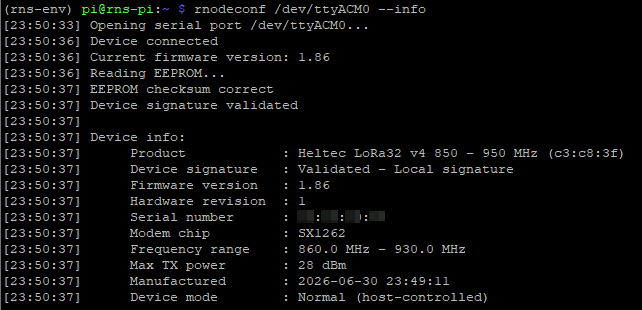
  • rnodeconf — the RNode firmware flashing and configuration tool I’ll use in Chapter 4
  • rnstatus, rnpath, rnprobe — the diagnostic tools I’ll lean on heavily in Chapter 8

Let me verify both key tools installed correctly:

rnsd --version
rnodeconf --version

If both return version numbers without errors, I’m in good shape.

NOTE: At the time of writing this post and stepping through everything, rnsd = v1.3.5, and rnodeconf = v2.5.0.
Parts of this write-up may be different if there is a large delta between the versions what I am using here and future builds.

Step 7: Sort out USB serial permissions

This is a small but important step that’s easy to forget and causes confusing errors later. My user account needs permission to access serial ports (/dev/ttyACM0 etc.) without requiring sudo every time:

sudo usermod -a -G dialout $USER

This group change doesn’t take effect in the current session — I need to log out and back in, or just reboot:

sudo reboot

Reconnect via SSH after reboot and confirm the group is applied:

groups

I should see dialout in the list. If it’s there, the Pi is fully prepped.

Where I am now

At this point my Pi 3 is updated, has a clean Python venv with Reticulum installed, and has serial port permissions sorted. Nothing is physically connected to it yet — the Heltec boards are still sitting on my bench with their antennas attached, waiting for Chapter 4 where I’ll plug the first one in and flash it with RNode firmware.

Reticulum: Chapter 2 — Hardware and Legal Prep

Getting my hardware sorted

Before I plugged anything in or installed a single package, I wanted to make sure I had everything I needed on the bench and that I understood the legal framework I’m operating within. Running LoRa in the EU isn’t complicated, but there are real limits I need to respect — and getting them wrong doesn’t just risk a fine, it directly affects whether my mesh actually works well in practice.

Here’s what I’m working with:

ItemNotes
2× Heltec WiFi LoRa 32 V4 boardsConfirm they’re the standard V4, not the Expansion Kit or Touch variant — those are different flash targets
2× antennas (868MHz!)Must match the actual frequency I’m using.
A 915MHz US antenna won’t perform correctly here
2× USB-C cablesMust be data-capable, not charge-only cables. This trips people up constantly — cheap cables often carry power only and the Pi simply won’t see the device
Raspberry Pi 3 With its usual PSU, SD card, and case.
You could use a newer model.
(Later) Pi Zero 2 W + power supplyFor the remote node compute — not needed yet, just on order

The antenna rule I’m treating as non-negotiable

The very first thing I learned about these boards: always attach the antenna before powering on. Transmitting into an open port with no antenna can destroy the SX1262 RF frontend almost instantly — it’s not a maybe, it’s a when. So my rule is simple: antenna on, every single time, before any USB plug-in or power-up. I’m making this a reflex now so it never becomes a mistake later.

EU 868MHz — what I actually need to know

This is where it gets interesting from a regulatory standpoint, and as someone interested in RF I actually wanted to understand this properly rather than just copy settings from a tutorial. The 863–870MHz band we’re operating in isn’t technically an ISM band in the ITU sense — it’s a Short Range Device (SRD) band, governed by EC regulation with ETSI EN 300 220 as the harmonised technical standard. Two limits matter for my build:

Transmit power: carrier power is capped at ≤25mW ERP on the relevant sub-bands. The Heltec V4 is technically capable of much higher output at the chip level — I must not run it at full power on a licence-free EU channel. 25mW ERP works out to roughly 14dBm, which becomes my target TX power setting when I get to Chapter 6.

Duty cycle: the band is divided into sub-bands with different duty cycle limits. The two I care about are:

Sub-bandFrequency rangeDuty cycleMy take
M868.0–868.6MHz1%Home to the three standard channels (868.1, 868.3, 868.5MHz) — heavily used, only 36 seconds of TX per rolling hour
P869.4–869.65MHz10%Less crowded, 6 minutes of TX per rolling hour — much more breathing room for a mesh

I’ve decided to run on 869.525MHz (P sub-band) for exactly this reason. The 10% duty cycle gives my mesh room to actually function — periodic announces, message traffic, and the occasional file transfer — without constantly bumping into the legal ceiling. On a 1% channel, a busy mesh starts throttling itself into near-uselessness surprisingly quickly.

Why this isn’t just a legal checkbox

This is the part I find genuinely important to understand: getting the duty cycle configuration wrong isn’t just a regulatory problem, it’s a practical one. RNode firmware enforces duty cycle limits in software once I tell it the correct region and parameters. If I configure things incorrectly — say, too aggressive an announce interval on a 1% channel — the firmware will throttle my own transmissions and the mesh will feel sluggish or drop packets entirely. Setting this right in Chapter 6 directly determines whether my network performs well, not just whether it’s legal.

One thing worth noting: some EU member states have national variations on top of the ETSI baseline. Since I’m in Germany, the Bundesnetzagentur is the relevant authority — but for the power and duty cycle limits above, the ETSI EN 300 220 baseline keeps me safe and compliant. Worth a quick check against your own national regulator if you’re following along from elsewhere in the EU.


Hardware is on the bench, antenna rule is locked in, and I understand the regulatory framework I’m operating within. In Chapter 3, I’ll start getting the Raspberry Pi 3 ready — OS, Python, and installing the Reticulum tools I’ll need before anything gets plugged in.

Reticulum: Chapter 1 — Concepts and Architecture

What Reticulum actually is

Before I touch a single piece of hardware, I wanted to make sure I actually understood what the Reticulum Network Stack (RNS) is — and what makes it different from the other mesh networking tools I’d come across. The short answer is that Reticulum isn’t a mesh radio protocol like LoRaWAN or Meshtastic. It’s a full networking stack — think of it as a replacement for the whole TCP/IP suite — that’s completely transport-agnostic. It can run over LoRa, packet radio, WiFi, TCP/IP, serial cables, even data-over-audio. The same Reticulum identity and the same application can move seamlessly across any combination of these at once. The LoRa nodes I’m building are just one interface type Reticulum can use, which is part of what makes this so interesting.

Three ideas make this stack genuinely different from typical networking, and I think they’re worth understanding before diving into the hardware:

  • Identity, not address. Every node and every user has a cryptographic identity — a keypair. You don’t route to an IP address, you route to a destination hash derived from a public key. This means encryption and addressing are unified from the ground up, with no central authority handing anything out.
  • No central authority. No DNS, no IP allocation, no certificate authority. Nodes discover each other and build routing tables organically through announcements. Nothing about this network depends on any external service staying online.
  • Initiative-based routing. Nodes announce themselves periodically. Other nodes hear those announcements, remember the path, and that’s how packets get routed later. There’s no constant polling or handshaking overhead — which matters enormously on slow LoRa links where every transmission costs airtime.

The four logical layers in my build

When I mapped out what I’m actually building, it breaks down into four layers sitting on top of each other:

[ Application ]   Nomad Network / Sideband / custom scripts
        |
[ Reticulum (RNS) ]  rnsd daemon — routing, encryption, transport logic
        |
[ Interface ]     RNode firmware — turns LoRa radio into a packet modem
        |
[ Radio (PHY) ]   Heltec V4 + SX1262 chip, 868MHz EU ISM band

My Raspberry Pi 3 runs the middle two as a single process: rnsd (the Reticulum daemon) talks out over USB serial to the Heltec, which is running RNode firmware and only deals with the radio physics. The Heltec itself doesn’t know anything about identities, encryption, or routing — it just shuttles KISS-framed packets between USB and RF. All the intelligence lives in rnsd on the Pi. That clean separation is one of the things I find elegant about this design.

Why this matters for my plan

Right now my plan is: Pi (with RNode #1 on USB) ↔ RF ↔ standalone RNode #2. But for Node 2 to be useful, something needs to run Reticulum on the other end — otherwise it’s just a radio with no brain. My real options, which I’ll work through properly in Chapters 5 and 7, are:

  1. Second compute near Node 2 — another Pi, a laptop, a phone running Sideband — attached to the Heltec via USB, giving me a second full site with complete app capability.
  2. TCP/WiFi bridge firmware on the remote Heltec — bridges LoRa to a WiFi/TCP backbone without needing separate compute, but it’s a different, less mature firmware path I’ll explore later once I understand the basics.
  3. Single Pi, two RNode interfaces — both Heltecs plugged into the same Pi via USB, which is actually the smartest way to start: prove everything works on the bench before deploying anything remotely.

Given where I’m starting, my plan is to validate everything with both Heltecs plugged into the Pi first, then physically separate them once I’m confident the radio link and configuration are solid.

The Transport concept — important for where this is going

One concept I want to flag early because it shapes everything that follows: a Reticulum node can be configured as a Transport Node, meaning it actively forwards traffic for others, not just sends and receives its own. My Pi 3, sitting at a fixed location with reliable power, is the natural candidate to become a Transport Node as I scale to 3+ nodes. This is what turns “two devices that can talk to each other” into actual mesh infrastructure — and it’s something I’ll enable in Chapter 6 and revisit properly when we get to Chapter 11.


That’s the conceptual foundation I’m working from. In Chapter 2, I’ll get into the physical hardware and the EU radio regulations I need to respect before anything gets powered on — including some rules around duty cycle and transmit power that will directly affect how I configure everything later.

Reticulum Network Stack

So, what exactly is Reticulum? Pronounced Reh-TIK-yoo-lum, it comes from Latin, meaning “small net” or “little network” — which is a pretty perfect name for what it does. Reticulum is a networking stack built for the real world — the one where you are operating from a hilltop, a remote cabin, or the back of a vehicle, and the internet is either unavailable, unreliable, or simply not something you want to depend on. It is designed to run across whatever physical links you have available: LoRa radio, packet radio, WiFi, serial cables, or even audio tones over a soundcard. Unlike conventional networking, which assumes stable connections and centralised infrastructure, Reticulum treats those things as a luxury rather than a requirement. The same application, the same identity, and the same encrypted conversation can move across all of those link types simultaneously — the network figures out the best path on its own.

For those familiar with packet radio, Reticulum will feel conceptually familiar in some ways: it uses KISS framing over radio links, supports multi-hop routing, and is built around the idea that nodes should be able to find and communicate with each other without any central coordination. But it goes considerably further. Rather than assigning addresses from a central authority, every node and user on a Reticulum network is identified by a cryptographic keypair — your address is your public key, and encryption is built into the addressing system from the ground up. There is no network administrator handing out addresses, no DNS server to look up, and no single point of failure. Nodes announce themselves periodically, others hear those announcements and build routing tables from what they actually receive, and the mesh grows organically from there.

For the LoRa and IT community, Reticulum offers something that most LoRa platforms do not: a full, general-purpose networking stack rather than a purpose-built application. Platforms like Meshtastic are excellent for what they do, but they are largely fixed-purpose messaging systems. Reticulum is a foundation you can build anything on — messaging, file transfer, remote monitoring, custom applications — while remaining transport-agnostic underneath. Low-cost hardware like the Heltec WiFi LoRa 32 V4, flashed with open-source RNode firmware, becomes a capable radio modem that a Raspberry Pi can use as one interface among many, routing traffic intelligently across whatever links are available.

In the chapters that follow, I invite you to join me as I dive step by step into building my own Reticulum network from scratch — two LoRa nodes, a Raspberry Pi as a persistent routing node, EU-compliant radio configuration, and a growing mesh I plan to expand over time to include a cloud node. This is not a polished how-to from someone who has done it a hundred times — it is a genuine exploration of what is possible, documented as I go. Whether your interest is emergency communications, off-grid connectivity, decentralised networking, or simply seeing what capable radio hardware and thoughtful software can do together, I hope you will find something here worth taking back to your own shack.

DISCLAIMER: Laws change over time. Useable radio frequencies vary by region and country. Ability to transmit encrypted signals can also vary by region and country. Make sure you have looked up, read, and understand what is allowed and acceptable where you are. Remember that YOU are responsible for what you transmit.

Reticulum outline of what I will be covering…

Chapter 0 — Reticulum Network Stack
Introduction to RNS

Chapter 1 — Concepts & Architecture
What Reticulum actually is, how RNode/Pi/app pieces fit together, and how your 2-node topology will grow.

Chapter 2 — Hardware & Legal Prep
Heltec V4 unboxing/antenna safety, USB cables, EU 868MHz duty-cycle/power rules you must respect.

Chapter 3 — Prep the Raspberry Pi 3
OS, Python, drivers, installing Reticulum (rns) and rnodeconf.

Chapter 4 — Flash RNode Firmware onto Heltec V4 (Node #1, attached to Pi)
Using rnodeconf –autoinstall, selecting Heltec V4, setting EU 868MHz region.

Chapter 5 — Flash the Second Heltec V4 (Remote Node)
Same process, plus deciding if it’ll be USB-tethered to a second compute, battery-powered standalone, etc.

Chapter 6 — Configure Reticulum on the Pi (~/.reticulum/config)
Defining the RNode interface, frequency/bandwidth/spreading factor/power settings, enabling Transport mode.

Chapter 7 — Deploy the Remote Node
How the second node connects to the mesh — same Pi via second RNode, separate compute, or standalone via WiFi/TCP bridge.

Chapter 8 — First Contact: Testing the Link
Using rnstatus, rnpath, ping tools to confirm the two nodes see each other.

Chapter 9 — Running an Application
Install Nomad Network (or Sideband) on the Pi/phone, send a real message across the mesh.

Chapter 10 — Running rnsd as a Service
Making the Pi a persistent always-on Transport node (systemd), so it’s real infrastructure, not just a foreground process.

Chapter 11 — Growing to 3+ Nodes & Next Steps
Multi-hop considerations, Transport nodes, propagation nodes, planning antenna placement.

Chapter 12 — Adding a Cloud Node
Making a permanent, internet-reachable rendezvous point with a static IP

Chapter 13 — Adding a Nomad Network Propagation Node
Adding “Store-and-Forward” mesh capability to the cloud node