Reticulum: Chapter 4 — Flash RNode Firmware onto Heltec V4
This is where things get real
I’m going to plug in the first Heltec V4, flash it with RNode firmware using rnodeconf, and confirm it comes up correctly as a proper LoRa modem that Reticulum can talk to. Up until now everything has been software preparation. This is the first moment where hardware and software meet.
Step 1: Antenna on, then plug in
I’m following my own rule from Chapter 2 without exception: 868MHz antenna screwed firmly onto the Heltec before the USB-C cable goes anywhere near it. Antenna first, every time. Once it’s on, I connect the USB-C data cable from the Heltec to the Pi 3.
A reminder worth repeating here: if the Pi doesn’t see the device in the next step, the first thing I’ll check is the cable. Charge-only USB-C cables are everywhere and look identical to data cables — swapping the cable has saved me more debugging time than almost anything else.
Step 2: Confirm the Pi sees the device
SSH into the Pi, activate the venv, then check what’s appeared on the USB bus:
source ~/rns-env/bin/activate
ls /dev/ttyUSB* /dev/ttyACM*
The Heltec V4’s ESP32-S3 typically shows up as /dev/ttyACM0 rather than /dev/ttyUSB0 — it uses native USB CDC rather than a separate USB-to-serial chip. Take note whichever path appears, because we’ll need it in a moment.

If nothing shows up at all, my checklist is: try a different cable first, then try a different USB port on the Pi, then check that the dialout group fix from Chapter 3 Step 7 actually took effect (groups should show dialout).
Step 3: Launch the autoinstaller
rnodeconf --autoinstall
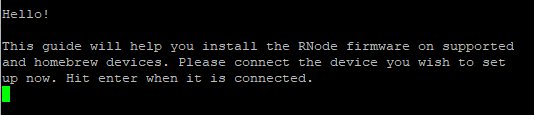
This launches an interactive wizard that walks me through everything — device detection, board selection, firmware download, and flashing. I don’t need to know the exact firmware version or download anything manually; rnodeconf handles all of that.
Step 4: Walk through the prompts
This is the part where I need to pay attention rather than just hitting Enter through everything. Here’s what to expect and what to actually select at each prompt:
Port scan — the tool scans for connected serial devices and should find /dev/ttyACM0. If it lists multiple ports (it shouldn’t, since only one Heltec is connected right now), select the one that appeared in Step 2.

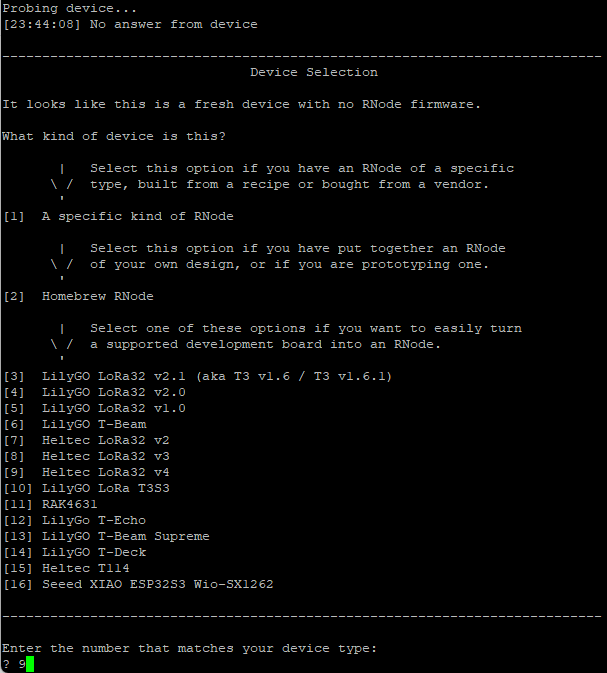
Device selection — a numbered list of supported boards appears. I’m looking for the Heltec V4 / Heltec LoRa32 V4 entry. The exact number in the list can shift between firmware releases, so I read the list carefully rather than assuming a number — I select whichever entry matches my hardware.
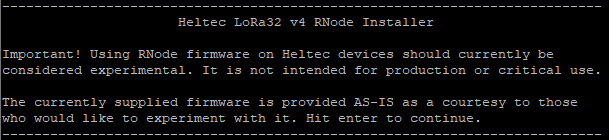
Experimental warning — the tool may flag Heltec V4 support as experimental since it’s a relatively recent addition. I just hit Enter to continue; this is expected and the firmware works fine in practice.
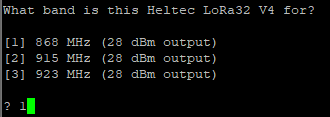
Frequency/region selection — this is the most important prompt in the whole process. I select 868MHz / EU without hesitation. Not 915MHz, not 923MHz — those are for other regions and would put me outside my legal operating parameters immediately. This is the setting that ties directly back to the Chapter 2 regulatory groundwork.
Confirmation screen — before writing anything, the tool shows me a summary of everything I’ve selected. I read through it carefully, confirm the board type and frequency region are correct, then proceed.
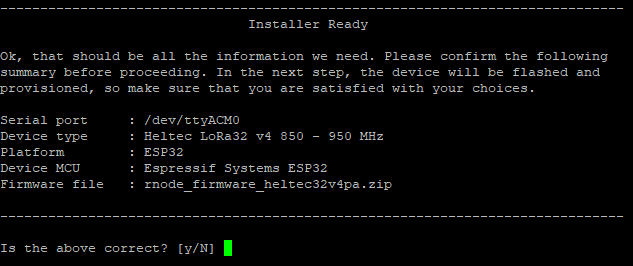
Flash and provision — rnodeconf downloads the firmware and writes it to the board. This takes a minute or two. I leave it alone and let it finish without interrupting the USB connection.
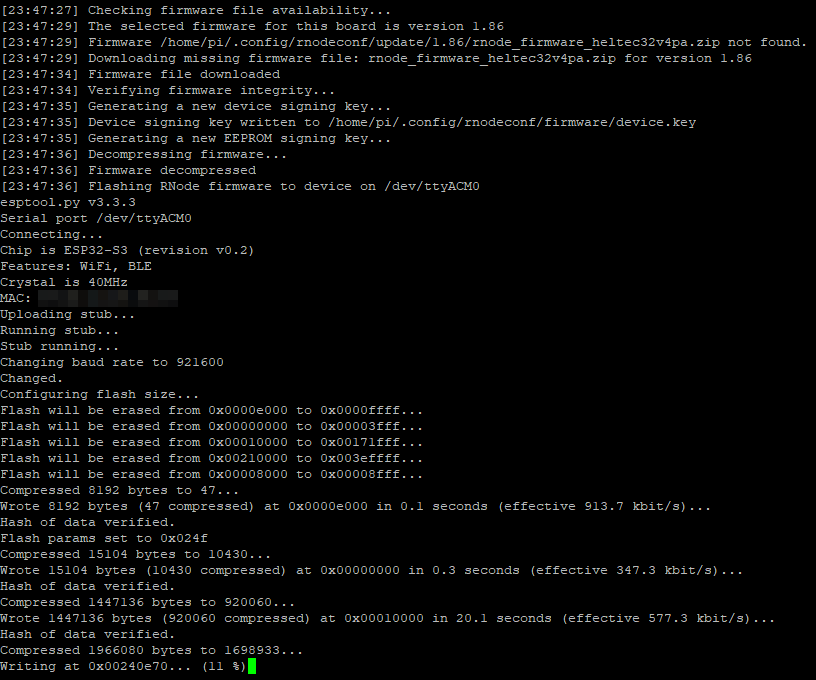
The shutdown step quirk — at the end of the flash process, a scripted shutdown step may appear to hang or throw an error. This is a known cosmetic issue, not a real failure. If it happens, I just press the physical reset button on the Heltec board and watch the OLED display.
Step 5: Confirm success on the OLED
Once flashing completes, the Heltec’s OLED display should show RNode firmware status information — not the stock Heltec boot logo, not a Meshtastic splash screen, but RNode’s own status readout. Seeing that on the screen is my first visual confirmation that the flash worked.
Step 6: Verify from the Pi
I run a non-destructive info query to confirm the firmware and settings from the Pi’s side:
rnodeconf /dev/ttyACM0 --info
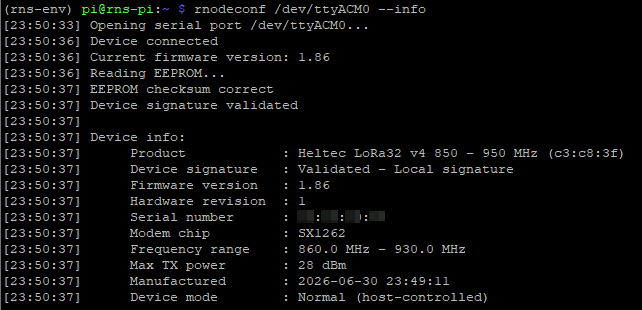
This should report back the firmware version, the configured frequency, and hardware details. The thing I’m specifically checking here is that the frequency shows 868MHz and the region is set to EU — that’s the detail most worth confirming before I go any further, because a misconfigured frequency here means two nodes that will never hear each other no matter how good the rest of the setup is.
Step 7: Label it
This sounds trivial and I nearly skipped it the first time — don’t. I put a small piece of tape on this board and write “Node 1 / Pi” on it. Since the boards look identical, once I have two flashed Heltecs sitting on my bench, I’ll be grateful they are labeled.
Node 1 is flashed, verified, and labelled. The OLED is showing RNode status, rnodeconf –info confirms the EU 868MHz configuration, and the Pi can see it cleanly over USB. In Chapter 5 I’ll do the exact same process for the second Heltec — the one that will eventually live at the remote site — and then I’ll have both boards ready to configure together.