Reticulum: Chapter 8 — First Contact: Testing the Link
What this chapter means to me
Everything up to this point has been preparation — flashing firmware, writing config files, installing software, making decisions about hardware. Chapter 8 is where I find out if any of it actually works. This is the moment I’ve been building toward: two independent Reticulum nodes, each with their own RNode radio interface, seeing each other over the air for the first time. I’m keeping both nodes physically close for now (both still accessible, both easy to troubleshoot) because proving the link works on the bench before deploying anything remotely is the right order of operations.
My setup going into this test
At this point I have two independent machines running:
- Pi 3 running rnsd with Node 1’s Heltec on /dev/ttyACM0
- Pi Zero 2 W running rnsd with Node 2’s Heltec on /dev/ttyACM0
I have two SSH sessions open, one to each Pi, so I can watch both sides simultaneously. This dual-window view is important: a lot of what I’m looking for in this chapter is activity on both sides at once, and flipping between a single window would make that harder to follow.
Step 1: Start rnsd in verbose mode on both machines
On Pi 3 (Node 1):
source ~/rns-env/bin/activate
rnsd -v
On Pi Zero 2 W (Node 2):
source ~/rns-env/bin/activate
rnsd -v
The “-v” flag is important here, without it, rnsd runs fairly quietly and I won’t see the packet-level activity I’m looking for. With verbose logging on, I can watch individual interface events as they happen. I leave both running in their respective SSH windows and open additional sessions for the diagnostic commands that follow.
Step 2: Watch the startup output carefully
Before I even run any diagnostic tools, the “rnsd -v” output itself tells me a lot. On each Pi I’m looking for:
- The RNode interface reporting as online with its firmware version listed
- The configured frequency showing 869.525 MHz
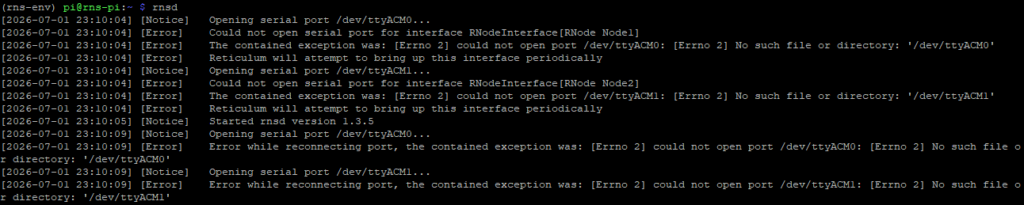
- No error messages about the port being unavailable or the device not responding
If either node throws errors here, I know immediately whether it’s a config issue (wrong port path, syntax error) or a hardware issue (cable, device not recognized). Catching this at startup means that I’m not chasing phantom problems later.
Step 3: Check interface status with rnstatus
In a third SSH session to Pi 3, with the venv active:
rnstatus -a
This gives me a real-time view of interface status — online/offline state, TX/RX packet counts, current airtime usage, and bitrate. Right after startup with nothing transmitting yet, I expect to see my RNode interface showing as online with airtime near zero. I run the same command in a fourth session on the Pi Zero 2 W to confirm Node 2’s interface independently.
What I’m specifically checking here: both interfaces showing online, not error or initialising. If either shows offline at this point, something is wrong with the USB connection or the config before I even get to the radio test.
Step 4: Watch for the first over-the-air contact
This is the part I find genuinely exciting. I don’t need to trigger anything manually — Reticulum nodes announce themselves periodically by design. Within a minute or two of both rnsd instances being up and running, I should start seeing activity in the verbose log windows that looks something like incoming packet events referencing the RNode interface name.
What I’m watching for on each side is log lines indicating received data on the RNode interface — not just outgoing transmissions, but actual incoming packets from the other node. When I see that on both sides, that’s my first confirmation of a genuine two-way over-the-air link. Two radios, a few centimetres apart on my bench, talking to each other through Reticulum for the first time.
I’ll be honest — when I see those first mutual receive events in the logs, that’s a satisfying moment. A lot of work went into getting here.
Step 5: Check the path table with rnpath
Once some announce traffic has flowed between the nodes:
rnpath -t
This shows all destination paths Reticulum has learned and remembers. Early on, shortly after first startup, this table may still be sparse — path learning takes a little time as announces propagate. But as the nodes run and exchange announces, I should start seeing entries appear. Once Chapter 9’s application layer is running and generating real named destinations, this table becomes much more meaningful — for now it’s a useful indicator that routing information is actually being exchanged.
Step 6: The rnprobe caveat — and why I’m saving it for Chapter 9
I want to use “rnprobe” for a proper ping-style round-trip test, but there’s an important nuance: probes only get answered if the destination is configured to send delivery proofs back. A bare rnsd with no application running on top of it doesn’t present a probeable destination by default; So running rnprobe right now against Node 2 would likely time out, not because the link is broken but because there’s nothing on the other end to answer it.
Once I install Nomad Network in Chapter 9, its LXMF endpoints do respond to probes — which is when rnprobe becomes the clean, meaningful round-trip test I want. I’m flagging this now so I don’t waste time troubleshooting a “failed” probe that isn’t actually a failure.
Troubleshooting — if I see nothing
If after a few minutes neither side is logging any sign of the other, here’s my checklist in order:
Check frequency first. Both configs must show exactly “869525000”. A single digit typo here means the radios are on different channels and will never hear each other regardless of everything else being perfect. I double-check both config files rather than assuming I got it right.
Check antennas. Both firmly attached? It sounds obvious but it’s worth physically confirming — a finger-tight connection that worked itself loose is easy to miss.
Consider proximity desensitisation. If both radios are very close together — same desk, antennas almost touching — at 14dBm I might actually be overloading the receivers with too strong a signal rather than too weak. Counterintuitive but real. My fix: temporarily drop txpower to 2 or 3 in both configs and restart rnsd. If the nodes suddenly see each other at lower power, I know proximity was the issue. I’ll raise it back to 14 before any real deployment.
Check rnstatus airtime. If I see TX events registering on one side but no corresponding RX on the other, the config is probably fine and it’s an RF or physical issue. If I see no TX events at all on either side, something is wrong earlier in the stack — interface not coming up, wrong port, or a config error I missed.
What success looks like
I’m calling this chapter done when I see:
- Both “rnsd -v” windows showing incoming packet activity from the other node
- “rnstatus -a” on both sides showing non-zero RX counts
- “rnpath -t” beginning to populate with learned path entries
That’s a proven, working, two-way radio link between two independent Reticulum nodes. Everything from here builds on top of this moment.
The link works. Two nodes, two machines, one mesh. In Chapter 9 I’ll install Nomad Network on both machines and send an actual encrypted message across this link — turning a proven radio connection into a working communications system, and finally getting rnprobe to give me the clean round-trip data I’ve been saving it for.