Reticulum: Chapter 8 — First Contact: Testing the Link

What this chapter means to me

Everything up to this point has been preparation — flashing firmware, writing config files, installing software, making decisions about hardware. Chapter 8 is where I find out if any of it actually works. This is the moment I’ve been building toward: two independent Reticulum nodes, each with their own RNode radio interface, seeing each other over the air for the first time. I’m keeping both nodes physically close for now (both still accessible, both easy to troubleshoot) because proving the link works on the bench before deploying anything remotely is the right order of operations.

My setup going into this test

At this point I have two independent machines running:

  • Pi 3 running rnsd with Node 1’s Heltec on /dev/ttyACM0
  • Pi Zero 2 W running rnsd with Node 2’s Heltec on /dev/ttyACM0

I have two SSH sessions open, one to each Pi, so I can watch both sides simultaneously. This dual-window view is important: a lot of what I’m looking for in this chapter is activity on both sides at once, and flipping between a single window would make that harder to follow.

Step 1: Start rnsd in verbose mode on both machines

On Pi 3 (Node 1):

source ~/rns-env/bin/activate
rnsd -v

On Pi Zero 2 W (Node 2):

source ~/rns-env/bin/activate
rnsd -v

The “-v” flag is important here, without it, rnsd runs fairly quietly and I won’t see the packet-level activity I’m looking for. With verbose logging on, I can watch individual interface events as they happen. I leave both running in their respective SSH windows and open additional sessions for the diagnostic commands that follow.

Step 2: Watch the startup output carefully

Before I even run any diagnostic tools, the “rnsd -v” output itself tells me a lot. On each Pi I’m looking for:

  • The RNode interface reporting as online with its firmware version listed
  • The configured frequency showing 869.525 MHz
  • No error messages about the port being unavailable or the device not responding

If either node throws errors here, I know immediately whether it’s a config issue (wrong port path, syntax error) or a hardware issue (cable, device not recognized). Catching this at startup means that I’m not chasing phantom problems later.

Step 3: Check interface status with rnstatus

In a third SSH session to Pi 3, with the venv active:

rnstatus -a

This gives me a real-time view of interface status — online/offline state, TX/RX packet counts, current airtime usage, and bitrate. Right after startup with nothing transmitting yet, I expect to see my RNode interface showing as online with airtime near zero. I run the same command in a fourth session on the Pi Zero 2 W to confirm Node 2’s interface independently.

What I’m specifically checking here: both interfaces showing online, not error or initialising. If either shows offline at this point, something is wrong with the USB connection or the config before I even get to the radio test.

Step 4: Watch for the first over-the-air contact

This is the part I find genuinely exciting. I don’t need to trigger anything manually — Reticulum nodes announce themselves periodically by design. Within a minute or two of both rnsd instances being up and running, I should start seeing activity in the verbose log windows that looks something like incoming packet events referencing the RNode interface name.

What I’m watching for on each side is log lines indicating received data on the RNode interface — not just outgoing transmissions, but actual incoming packets from the other node. When I see that on both sides, that’s my first confirmation of a genuine two-way over-the-air link. Two radios, a few centimetres apart on my bench, talking to each other through Reticulum for the first time.

I’ll be honest — when I see those first mutual receive events in the logs, that’s a satisfying moment. A lot of work went into getting here.

Step 5: Check the path table with rnpath

Once some announce traffic has flowed between the nodes:

rnpath -t

This shows all destination paths Reticulum has learned and remembers. Early on, shortly after first startup, this table may still be sparse — path learning takes a little time as announces propagate. But as the nodes run and exchange announces, I should start seeing entries appear. Once Chapter 9’s application layer is running and generating real named destinations, this table becomes much more meaningful — for now it’s a useful indicator that routing information is actually being exchanged.

Step 6: The rnprobe caveat — and why I’m saving it for Chapter 9

I want to use “rnprobe” for a proper ping-style round-trip test, but there’s an important nuance: probes only get answered if the destination is configured to send delivery proofs back. A bare rnsd with no application running on top of it doesn’t present a probeable destination by default; So running rnprobe right now against Node 2 would likely time out, not because the link is broken but because there’s nothing on the other end to answer it.

Once I install Nomad Network in Chapter 9, its LXMF endpoints do respond to probes — which is when rnprobe becomes the clean, meaningful round-trip test I want. I’m flagging this now so I don’t waste time troubleshooting a “failed” probe that isn’t actually a failure.

Troubleshooting — if I see nothing

If after a few minutes neither side is logging any sign of the other, here’s my checklist in order:

Check frequency first. Both configs must show exactly “869525000”. A single digit typo here means the radios are on different channels and will never hear each other regardless of everything else being perfect. I double-check both config files rather than assuming I got it right.

Check antennas. Both firmly attached? It sounds obvious but it’s worth physically confirming — a finger-tight connection that worked itself loose is easy to miss.

Consider proximity desensitisation. If both radios are very close together — same desk, antennas almost touching — at 14dBm I might actually be overloading the receivers with too strong a signal rather than too weak. Counterintuitive but real. My fix: temporarily drop txpower to 2 or 3 in both configs and restart rnsd. If the nodes suddenly see each other at lower power, I know proximity was the issue. I’ll raise it back to 14 before any real deployment.

Check rnstatus airtime. If I see TX events registering on one side but no corresponding RX on the other, the config is probably fine and it’s an RF or physical issue. If I see no TX events at all on either side, something is wrong earlier in the stack — interface not coming up, wrong port, or a config error I missed.

What success looks like

I’m calling this chapter done when I see:

  • Both “rnsd -v” windows showing incoming packet activity from the other node
  • “rnstatus -a” on both sides showing non-zero RX counts
  • “rnpath -t” beginning to populate with learned path entries

That’s a proven, working, two-way radio link between two independent Reticulum nodes. Everything from here builds on top of this moment.


The link works. Two nodes, two machines, one mesh. In Chapter 9 I’ll install Nomad Network on both machines and send an actual encrypted message across this link — turning a proven radio connection into a working communications system, and finally getting rnprobe to give me the clean round-trip data I’ve been saving it for.


Reticulum: Chapter 7 — Deploy the Remote Node

Making a remote node…

Both nodes are still sitting on my bench plugged into the Pi 3, and everything is working. Now I need to start thinking seriously about what “remote” actually means for Node 2 — because unplugging it from the Pi and moving it somewhere else means it needs its own brain. As I covered back in Chapter 1, the Heltec running RNode firmware has no intelligence of its own. It’s a radio modem. Something has to run rnsd wherever Node 2 physically lives, otherwise it’s just a very expensive antenna.

I’ll apologize up front, as this chapter ended up being more nuanced than I had anticpated, because my plan to use an iPhone as Node 2’s compute ran into some real-world limitations worth being honest about. I’ll walk through the full picture.

The options I considered for Node 2’s compute

Before landing on a decision, I mapped out my realistic options were:

Option A — Second Raspberry Pi or similar SBC The most consistent choice and the most directly parallel to what I’ve already built. A Pi Zero 2 W, Pi 3, or any similar board running rnsd with the Heltec attached via USB. Everything I’ve learned so far applies directly, and it becomes a proper second site with full capability. This is the path I’m going to take.

Option B — Old laptop or always-on desktop Exactly the same software pattern as the Pi — install Python, pip install rns, attach the Heltec, run rnsd. Less elegant for a permanent low-power installation but zero additional cost if the hardware is already sitting around. A completely valid short-term option while waiting for a Pi to arrive.

Option C — Android phone running Sideband via USB-OTG Sideband is a full Reticulum messaging app that can talk directly to an RNode over USB-OTG from an Android phone, no separate Linux box needed. Good for a mobile or temporary node, less ideal as fixed always-on infrastructure since it ties up a phone permanently.

Option D — iPhone running Sideband via Bluetooth This was my original plan, and it’s where I hit a wall worth being transparent about.

The honest state of iOS support

I went into this assuming iPhone support would be straightforward since Sideband exists on iOS. The reality is more nuanced. RNode firmware does support Bluetooth LE, and iOS devices can discover and connect to an RNode over BLE. A TestFlight beta of Sideband for iOS exists and is actively developed. But at this time, feature-wise, it is behind the Android and desktop experience in a few important ways:

iOS connects over Bluetooth only, there’s no USB path available on iPhone the way USB-OTG works on Android. The BLE pairing process involves an out-of-band PIN verification step, with the pairing PIN shown on the RNode’s OLED display, which adds friction to initial setup. And the iOS app has been in active beta development for a while, it works, but it has rough edges that a stable shipped product likely wouldn’t have.

I’m not abandoning the iPhone idea. I actually think it’s genuinely exciting once it works, since it means my phone becomes a standalone mesh client without needing any other compute nearby. But I’ve decided not to make it my primary path to a working remote node, because it adds too many unknowns on top of everything else that’s still new to me. My plan is to get the Pi Zero 2 W working solidly first, then layer in the iOS BLE connection as a parallel experiment once the core mesh is proven.

My decision: Pi Zero 2 W as primary, iOS BLE as parallel experiment

I’ve ordered a Pi Zero 2 W for Node 2’s permanent compute. In the meantime, Node 2 stays on the Pi 3 for all the testing in Chapter 8. Once the Zero arrives I’ll set it up properly, and I’ll pursue the iOS TestFlight path alongside that as a second, optional way to reach the mesh.


Track A: Pi Zero 2 W setup

Step 1: Flash the OS — same process as Chapter 3, one wrinkle

Raspberry Pi Imager → Choose Device: Pi Zero 2 W → Raspberry Pi OS Lite (64-bit) → Bookworm (same Trixie/WiFi caveat from Chapter 3 applies here too) → Advanced Options to configure hostname (rns-pi-zero), username/password, WiFi credentials and country, enable SSH → write and verify.

The one wrinkle specific to the Pi Zero 2 W: it has a single micro-USB data port and a separate micro-USB power port. I need to make sure I’m using the correct port — labelled “USB” not “PWR” — for connecting the Heltec, and that I have a micro-USB to USB-C data cable, not a charge-only one. Same cable quality rule as everywhere else in this build.

Step 2: First boot and software install

ssh myusername@rns-pi-zero.local
sudo apt update && sudo apt full-upgrade -y
sudo reboot

Then after reconnecting:

sudo apt install -y python3-pip python3-venv python3-full git
python3 -m venv ~/rns-env
source ~/rns-env/bin/activate
pip install rns --upgrade
sudo usermod -a -G dialout $USER
sudo reboot

Identical to Chapter 3. The Pi Zero 2 W is slower than the Pi 3 so I give each step a little more time — full-upgrade in particular can take a while on the Zero’s single-core-equivalent performance.

Step 3: Move Node 2’s Heltec over

Once the Pi Zero 2 W is set up, I unplug Node 2 from the Pi 3 and connect it to the Pi Zero 2 W instead. The antenna stays on — I never remove it between moves. I verify the Pi Zero sees it:

ls /dev/ttyACM*
rnodeconf /dev/ttyACM0 --info

The firmware I flashed in Chapter 5 is stored on the Heltec itself — nothing needs to be reflashed just because I’ve moved it to a different computer. The --info command should report EU 868MHz firmware exactly as it did before.

Step 4: Configure Reticulum on the Pi Zero 2 W

Generate the default config:

rnsd &
sleep 3
kill %1
nano ~/.reticulum/config

This config only needs one RNode interface — Node 2’s — plus Transport mode enabled so this site can relay for future nodes as the mesh grows:

[reticulum]
  enable_transport = True
  share_instance = True

[interfaces]
  [[RNode Node2]]
    type = RNodeInterface
    interface_enabled = true
    port = /dev/ttyACM0
    frequency = 869525000
    bandwidth = 125000
    txpower = 14
    spreadingfactor = 9
    codingrate = 5
    airtime_limit_long = 10
    airtime_limit_short = 25

Identical radio parameters to what I set on the Pi 3 in Chapter 6. The frequency must match exactly — that’s what lets Node 1 and Node 2 hear each other across the RF link.

Step 5: Keep it nearby for now

I’m resisting the urge to immediately deploy the Pi Zero + Node 2 somewhere interesting. The smarter move is to prove the link works first — both machines within reach, both accessible over SSH, both easy to troubleshoot — and only move Node 2 to its final remote location once Chapter 8 has given me confidence everything is solid. Deploy first, debug remotely later is the harder path. I’ve learned this lesson before on other projects.


Track A(a): Pi Zero W setup

You screwed up and ordered a “Pi Zero” instead of the “Pi Zero 2″… It’s okay. It’ll still work for our testing as we learn more about RNS. For what it is worth and if it makes you feel any better, I too initially ordered a “Pi Zero” by mistake and had to go back and order the correct device. So, you’re not alone in your predicament. But that fact is that we can still use it. It’ll just be noticeably slower than the preferred “Pi Zero 2” hardware. But since that is what we have… Let’s go!

Step 1: Flash the OS — same process as Chapter 3

Raspberry Pi Imager → Choose Device: Pi Zero W → Raspberry Pi OS Lite (32-bit) → Bookworm (same Trixie/WiFi caveat from Chapter 3 applies here too) → Advanced Options to configure hostname (rns-pi-zero), username/password, WiFi credentials and country, enable SSH → write and verify.

This device has the same wrinkle specific to the “Zeros” in that it has a single micro-USB data port and a separate micro-USB power port. I need to make sure I’m using the correct port — labelled “USB” not “PWR” — for connecting the Heltec, and that I have a micro-USB to USB-C data cable, not a charge-only one. Same cable quality rule as everywhere else in this build.

Step 2: First boot and software install

ssh myusername@rns-pi-zero.local
sudo apt update && sudo apt full-upgrade -y
sudo reboot

Then after reconnecting:

sudo apt install -y python3-dev python3-pip python3-venv python3-full build-essential libffi-dev libssl-dev git rustc cargo
python3 -m venv ~/rns-env --system-site-packages
source ~/rns-env/bin/activate
pip install --upgrade pip setuptools wheel
pip install rns --upgrade
sudo usermod -a -G dialout $USER
sudo reboot

The “cargo” and “rustc” entries are worth explaining. Newer versions of the “cryptography” package have a Rust-based backend. On ARMv6 where no pre-built wheel exists, pip will attempt to compile it using Rust. Without Rust installed this fails. Installing it now prevents a confusing mid-process install error later.

Identical to Chapter 3. The Pi Zero W is slower than the Pi 3 and the Pi Zero 2 W, so I give each step a little more time.
The “full-upgrade” in particular can take a lot longer on the Zero.

Step 3: Move Node 2’s Heltec over

Once the Pi Zero 2 W is set up, I unplug Node 2 from the Pi 3 and connect it to the Pi Zero 2 W instead. The antenna stays on — I never remove it between moves. I verify the Pi Zero sees it:

ls /dev/ttyACM*
source ~/rns-env/bin/activate
rnodeconf /dev/ttyACM0 --info

The firmware I flashed in Chapter 5 is stored on the Heltec itself — nothing needs to be reflashed just because I’ve moved it to a different computer. The --info command should report EU 868MHz firmware exactly as it did before.

Step 4: Configure Reticulum on the Pi Zero 2 W

Generate the default config:

source ~/rns-env/bin/activate
rnsd &
sleep 3
kill %1
nano ~/.reticulum/config

This config only needs one RNode interface — Node 2’s — plus Transport mode enabled so this site can relay for future nodes as the mesh grows:

[reticulum]
  enable_transport = True
  share_instance = Yes

[interfaces]
  [[RNode Node2]]
    type = RNodeInterface
    interface_enabled = true
    port = /dev/ttyACM0
    frequency = 869525000
    bandwidth = 125000
    txpower = 14
    spreadingfactor = 9
    codingrate = 5
    airtime_limit_long = 10
    airtime_limit_short = 25

Identical radio parameters to what I set on the Pi 3 in Chapter 6. The frequency must match exactly — that’s what lets Node 1 and Node 2 hear each other across the RF link.

Step 5: Test

Time to test the connectivity of the Pi Zero to the Heltec device

rnsd -v


Step 6: Keep it nearby for now

I’m resisting the urge to immediately deploy the Pi Zero + Node 2 somewhere interesting. The smarter move is to prove the link works first — both machines within reach, both accessible over SSH, both easy to troubleshoot — and only move Node 2 to its final remote location once Chapter 8 has given me confidence everything is solid. Deploy first, debug remotely later is the harder path. I’ve learned this lesson before on other projects.


Track B: iOS Sideband BLE (parallel experiment)

Step 1: Get Sideband via TestFlight

On my iPhone I open TestFlight — installing it first from the App Store if needed — then search for the current Sideband beta link. The TestFlight links for beta apps rotate periodically so I’d recommend searching “Sideband Reticulum TestFlight” to find the current active link rather than me providing one that may have expired by the time you’re reading this.

Step 2: A note on which RNode to use for BLE

BLE and USB-serial can interfere with each other on the same RNode, so I wouldn’t enable BLE on Node 1 or Node 2 while they’re actively serving as my main mesh interfaces. Honestly, this is a good excuse to pick up a third Heltec V4 for BLE experimentation — which aligns with my longer-term plan of growing to 3+ nodes anyway. A third board means I can experiment with BLE without touching the working mesh infrastructure.

Step 3: Enable Bluetooth on the RNode

With the third Heltec connected via USB:

rnodeconf /dev/ttyACM2 --bluetooth on

Step 4: Pair from the iPhone

Open Sideband on the iPhone → navigate to the RNode connection settings → it should discover the RNode broadcasting over BLE → confirm the pairing PIN shown on the Heltec’s OLED display matches what appears on the iPhone → complete pairing.

Step 5: Set matching radio parameters in Sideband

Once paired, Sideband lets me configure the radio parameters directly — I set them to match my mesh exactly: 869.525MHz, 125kHz bandwidth, SF9, 14dBm TX power. This is what lets the iPhone-connected RNode actually participate in the same mesh as Node 1 and Node 2 rather than being on its own isolated channel.

My expectations for this track

I’m going into the iOS BLE path with realistic expectations — this is exploratory, not production. I expect rough edges, possibly some BLE connection drops, maybe app crashes here and there. That’s fine for the “learning and experimenting” goal I set out with at the beginning. The point isn’t a polished experience right now, it’s understanding what’s possible and where the technology is heading.


Where I am now

I have a clear two-track plan: Pi Zero 2 W as Node 2’s permanent dedicated compute (ordered, arriving soon), and iOS Sideband BLE as a parallel experiment using a third Heltec. Node 2 stays on the Pi 3 until the Zero arrives and everything is verified. In Chapter 8 I’ll prove the actual radio link between Node 1 and Node 2 works — the most satisfying milestone in the whole build so far.

Reticulum: Chapter 6 — Configure Reticulum on the Pi

Bringing Reticulum to life

Both of my Heltec devices are flashed and sitting on the Pi’s USB ports. Right now, they’re just radio modems — verified hardware with firmware on them, but nothing is actually using them – yet. This chapter is where I bring Reticulum to life: creating the config file that tells rnsd about both RNode interfaces, setting the EU-compliant radio parameters I worked out in Chapter 2, and enabling Transport mode so this Pi becomes genuine mesh infrastructure rather than just an endpoint. Getting this config right is probably the most consequential step in the whole build — everything from here depends on it.

Step 1: Generate the default config

Reticulum creates its config directory and a default config file the first time rnsd runs. I’ll start it briefly just to generate that file, then stop it:

source ~/rns-env/bin/activate
rnsd &
sleep 3
kill %1

Now the config exists and I can open it:

nano ~/.reticulum/config

What I see is a default config with a “[reticulum]” section at the top and an “[interfaces]” section below it containing a default “AutoInterface” entry — that’s a LAN multicast interface that’s harmless to leave in place, it just won’t find anything useful in my setup right now. I’ll leave it and add my RNode interfaces alongside it.

Step 2: Enable Transport mode

At the top of the file I find the “[reticulum]” section. I want to set two things here:

[reticulum]
  enable_transport = True
  share_instance = Yes

enable_transport = True — is what promotes this Pi from a simple endpoint into a proper Transport Node. Meaning that it will actively forward traffic between its interfaces on behalf of other nodes, which is the foundation of everything in Chapter 11’s growth plan. Without this, my Pi can only send and receive its own traffic, not relay for others.

share_instance = Yes — means multiple local programs (rnsd, Nomad Network, diagnostic tools) can all share the same running Reticulum instance rather than fighting over the interfaces. This will matter more in Chapter 9 when I add Nomad Network on top.

Step 3: Add the RNode interface for Node 1

Inside the “[interfaces]” section I add my first RNode block:

  [[RNode Node1]]
    type = RNodeInterface
    interface_enabled = true
    port = /dev/ttyACM0
    frequency = 869525000
    bandwidth = 125000
    txpower = 14
    spreadingfactor = 9
    codingrate = 5
    airtime_limit_long = 10
    airtime_limit_short = 25

Let me walk through each setting and why I’ve chosen it, because these aren’t arbitrary numbers — they each connect back to decisions I made earlier:

frequency = 869525000 — 869.525MHz, sitting in the P sub-band (869.4–869.65MHz). I chose this in Chapter 2 specifically because the P sub-band gives me a 10% duty cycle allowance instead of the 1% limit on the crowded M sub-band channels around 868MHz. More breathing room for mesh traffic.

bandwidth = 125000 — 125kHz is the standard LoRa bandwidth and a good balance of range versus data rate. I’m starting here and will tune later if needed.

txpower = 14 — 14dBm works out to roughly 25mW, matching the ≤25mW ERP carrier power limit I noted in Chapter 2. I’m starting at the legal ceiling rather than below it to give myself the best possible link margin, especially once the nodes are physically separated.

spreadingfactor = 9 — SF9 is my chosen middle ground. SF7 or SF8 would be faster and use less airtime, but shorter range. SF11 or SF12 would be extremely long range but painfully slow and very airtime-hungry given my duty cycle budget. SF9 feels like the right starting point for two nodes that aren’t many kilometers apart yet — I can always tune this once I know what the actual RF environment looks like.

codingrate = 5 — the most efficient forward error correction setting. I’m not fighting heavy interference right now, so there’s no reason to use a more conservative (slower) coding rate yet.

airtime_limit_long = 10 and airtime_limit_short = 25 — these are the settings I’m genuinely glad exist. The long-term limit enforces my legal 10% P-band duty cycle over a rolling 60-minute window, and the short-term limit manages brief burst behavior over roughly a 15-second window. What I appreciate about these settings is that they make the firmware itself enforce my legal duty cycle limits regardless of what the application layer tries to send — it’s a practical safety net built into the config, not just something I have to remember to respect manually.

Step 4: Add the RNode interface for Node 2

Same block, different name and port — but, and this is critical, they are set to use the identical frequency and radio parameters:

  [[RNode Node2]]
    type = RNodeInterface
    interface_enabled = true
    port = /dev/ttyACM1
    frequency = 869525000
    bandwidth = 125000
    txpower = 14
    spreadingfactor = 9
    codingrate = 5
    airtime_limit_long = 10
    airtime_limit_short = 25

The frequency must match exactly between both nodes, that’s non-negotiable, or else they won’t hear each other. Everything else (power, SF, airtime limits) should also match for predictable, symmetric behavior across the link, though strictly speaking only frequency and bandwidth need to be identical for basic communication.

One thing I’m conscious of right now: both radios are physically sitting a few centimeters apart on my bench, transmitting at 14dBm. That’s actually fine for testing — an overly strong signal up close doesn’t cause the kind of problems a weak signal does, and I’ll see the real link behavior once the nodes are separated. What I won’t do is crank the power up too high while they’re side by side; that tells me nothing useful and wastes airtime budget.

Step 5: Save and do a live syntax check

I save the file (Ctrl+O, Enter, Ctrl+X in nano) and then start rnsd in the foreground so I can watch the output directly:

rnsd

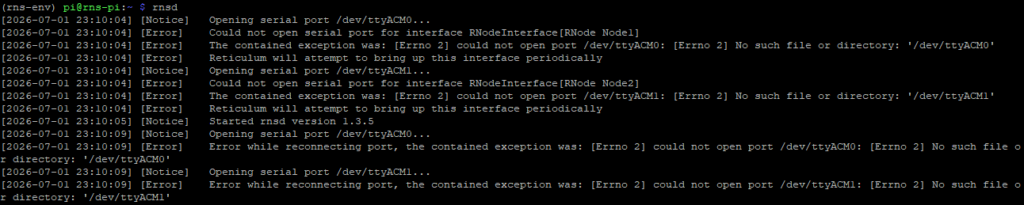
I’m watching for both RNode interfaces to initialize cleanly. The output should show each one coming online, reporting its detected hardware, firmware version, and frequency. If there’s a config syntax error or a wrong port path, rnsd will usually say so clearly right here rather than failing silently. This is the moment I find out if I’ve made any typos.

If both interfaces show as online without errors, I leave rnsd running in this terminal and open a second SSH session to the Pi for any further work — I don’t want to kill the running daemon just to run a command.

Successful initialization example:

Unsuccessful initialization example:

Where I am now

Both RNode interfaces are configured with EU-compliant, duty-cycle-enforced settings. The Pi is running as a Transport Node with rnsd active and both radios online. What I have at this point is a properly configured Reticulum backbone — two radio interfaces, legal parameters, automatic duty cycle enforcement, and Transport mode enabled. In Chapter 7 I’ll work through deploying Node 2 to its eventual remote location and what compute it needs to run Reticulum independently once it’s no longer plugged into this Pi.